How to Install WordPress Security & Malware Scan by CleanTalk
Here is a video guide with installation process or you can use the text version down below.
1. In the WordPress Admin Dashboard go to the Plugins section and press the Add New button.

2. Find the Security & Malware Scan by CleanTalk plugin by typing the "cleantalk" → Press the Install Now button near the plugin's name.

3. Once the plugin is installed, press the Activate button on the same page.
OR
In the Plugins section find the installed plugin Security by CleanTalk and press the Activate button under the plugin's name.

4. Go to Settings → Security by CleanTalk.
OR
In the Plugins section find the installed plugin Security by CleanTalk and press the Settings button under the plugin's name.

Go to the General Settings tab → Copy the access key from your CleanTalk Security Dashboard and paste it into the Access key field → Set up the plugin if necessary, and press the Save Changes button.

How to test Security FireWall
Add this string "/?spbct_test=MD5-OF-YOUR-ACCESS-KEY&spbct_test_ip=10.10.10.10" to your website address. You have to modify it for your access key.
Example:
- Your access key is 1234.
- Calculate the MD5 hash of your key here: https://www.tools4noobs.com/online_php_functions/md5/
- It would be 81dc9bdb52d04dc20036dbd8313ed055 for the "1234" key.
- Now modify the link to the security block screen. It will look like this:
- MyWebsite.com/?spbct_test=81dc9bdb52d04dc20036dbd8313ed055&spbct_test_ip=10.10.10.10
The same thing could be done in your CleanTalk Dashboard:
- Go to your Security Dashboard: /my?cp_mode=security
- Click the link "Settings" under the name of your website.
- Then click the link "Testing Security FireWall".

How to Test Brute-Force Protection
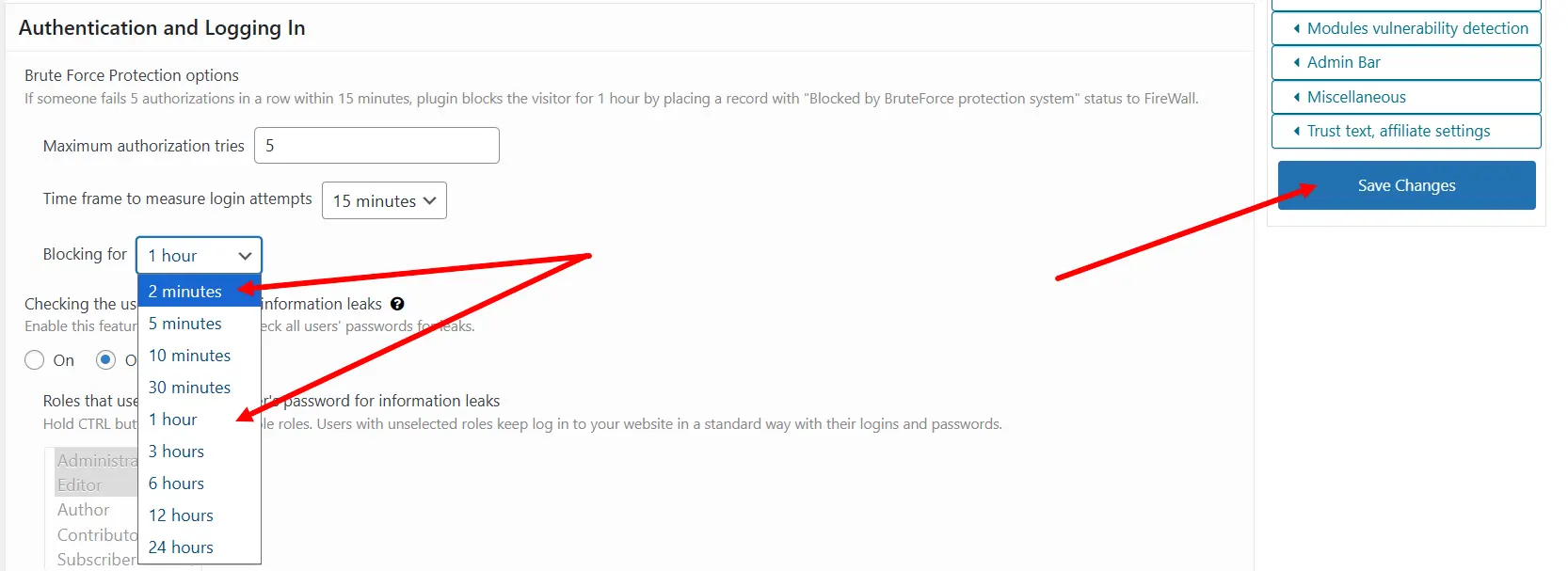
1. Navigate to the plugin settings under the Brute Force Protection section, temporarily set the blocking time to 2 minutes, and save your changes.
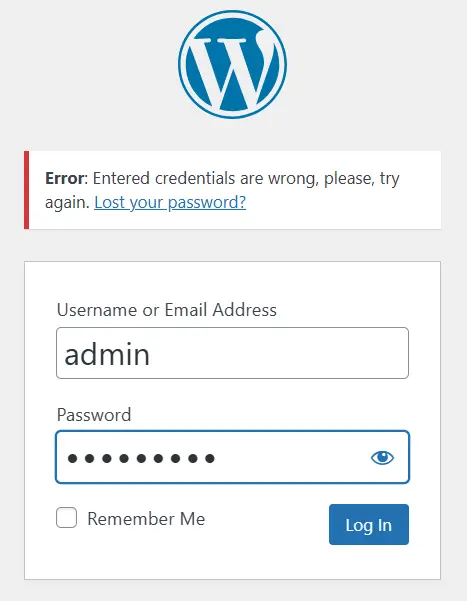
2. Open your website's login form in an Incognito/Private browser window, and enter incorrect login credentials several times in a row.
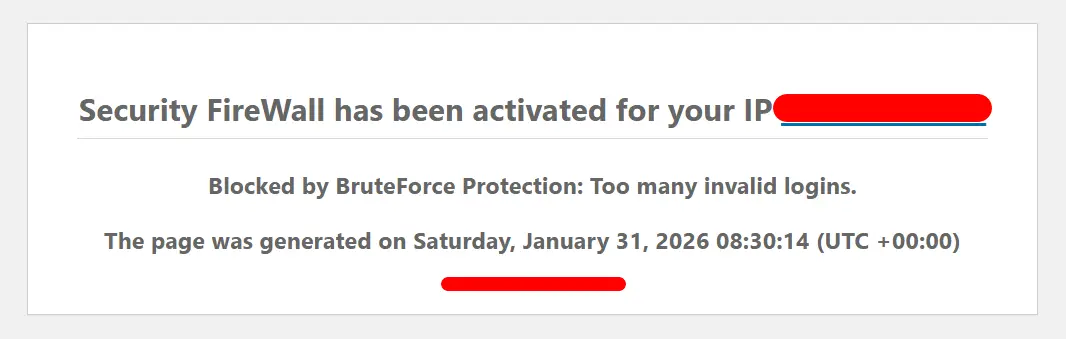
3. You should see a block screen appear. This confirms that the Brute-Force Protection module is active and working correctly.
4. Return to the plugin settings and set the blocking time back to 1 hour (or your preferred duration).
How to Test the CleanTalk Malware Scanner
1. Download the test files (curable.php and uncurable.php) and place them in a directory on your server (for example, a folder named /files/ in your site's root). You can do this via your hosting control panel or using an FTP/SFTP/SSH connection.
Note: These files contain test signatures that our plugin is programmed to detect. They are completely safe and do not contain any harmful code.
2. Start the malware scanner. Please wait for the scan to finish, and do not close the browser tab while it is in progress.

3. Check the Cure Log section: By default, the Cure malware option is enabled, so the plugin will automatically remove malicious code if it has a specific directive for that signature.
- curable.php: Should show a CURED status, meaning the threat was successfully removed.
- uncurable.php: Should show a FAILED status, as there is no automatic directive for this specific test signature.
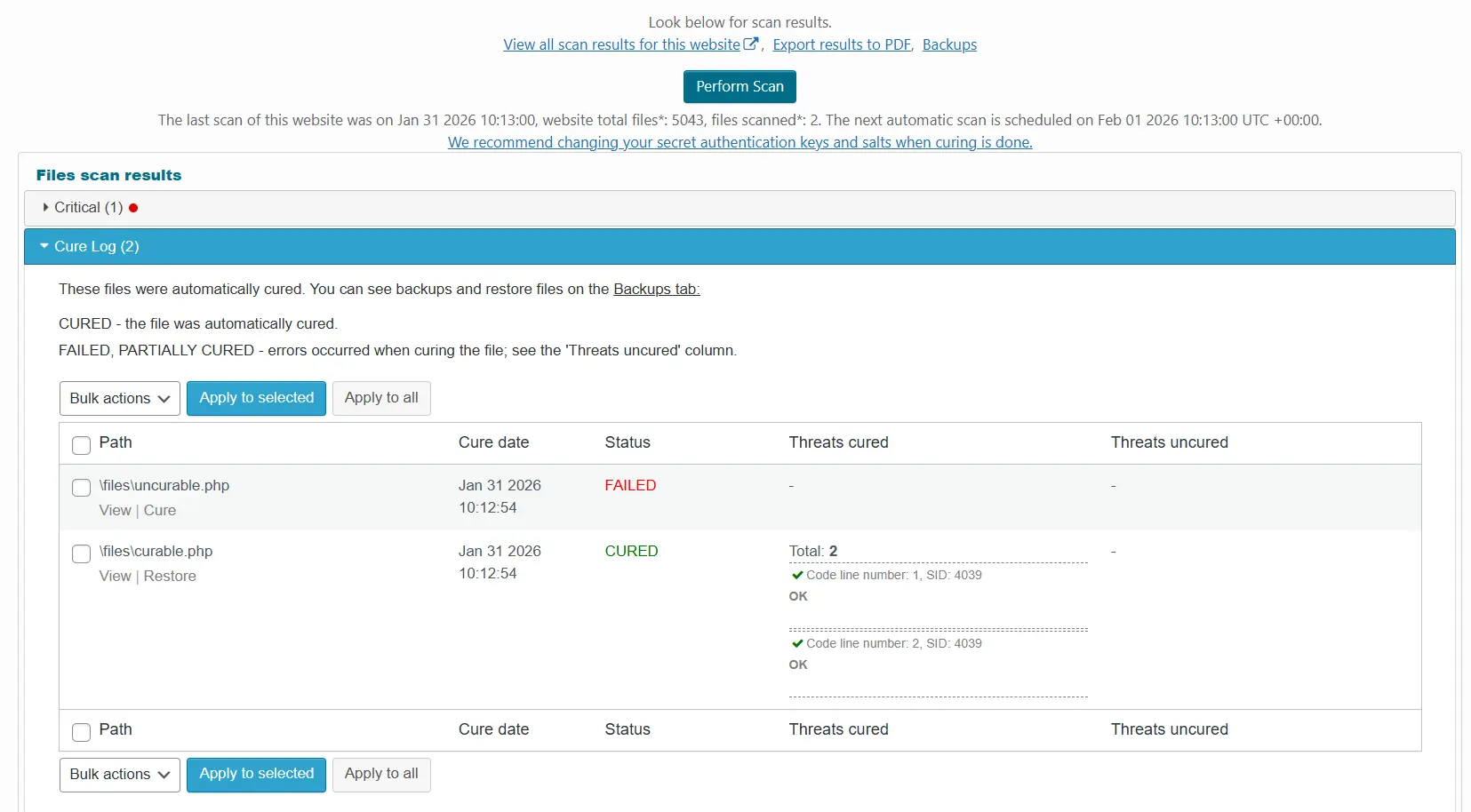
4. Because uncurable.php still contains the test code, it will appear in the Critical section of your results. For files in this category, you must manually decide the next step:
- Manually remove the suspicious code.
- Delete the file entirely.
- Approve the file (only if you are 100% certain it is safe).
Seeing files in the Critical section is a standard alert that your site may be infected.
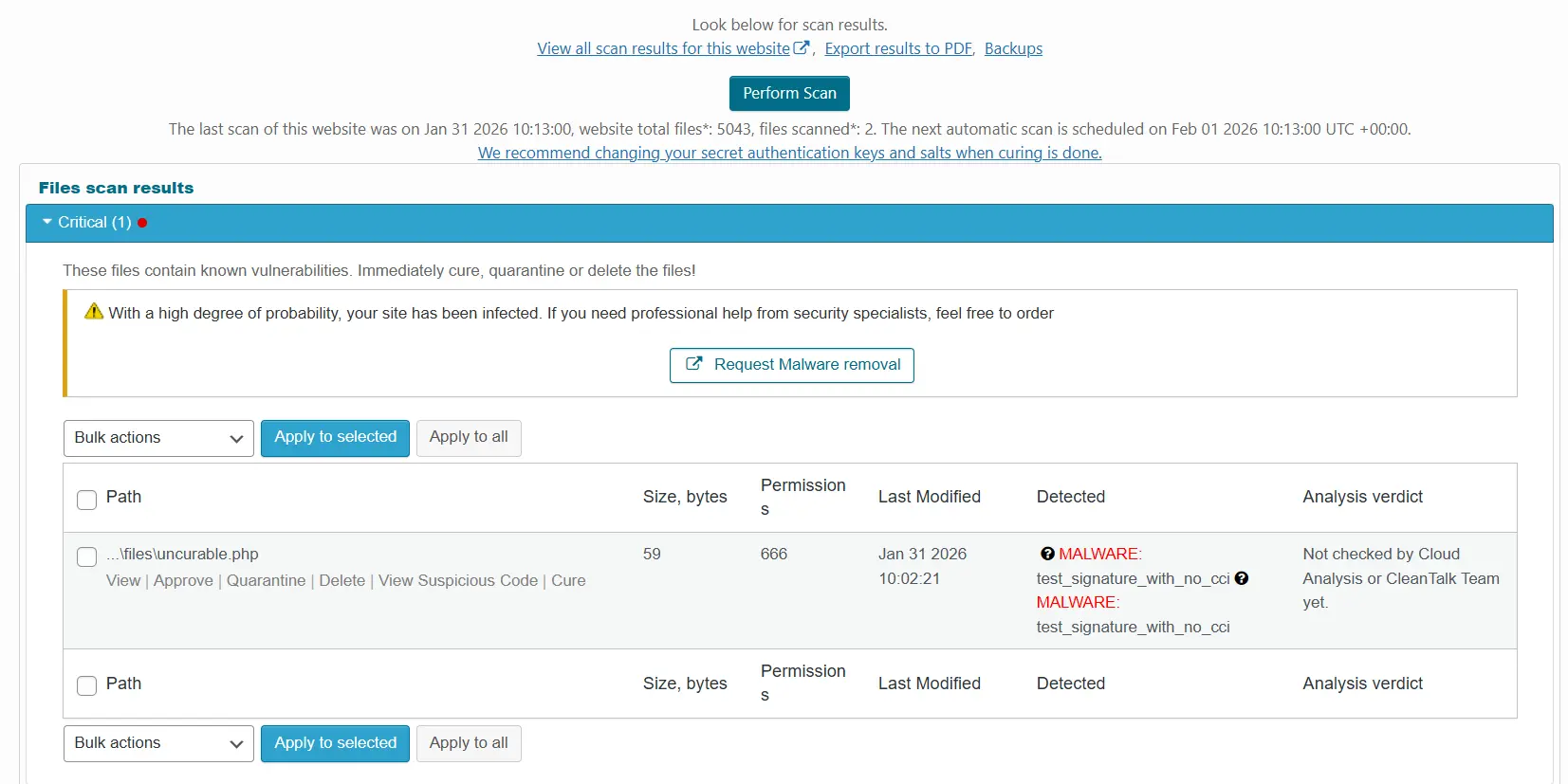
5. Once you have verified that the scanner is detecting and processing the files correctly, the test is complete. You may now delete the test files from your server.
Below is a video guide that shows the same process for scanning and dealing with malware on your WordPress site. The guide uses different test malware, but the idea is the same as described in this text.
How to Add a Website to the CleanTalk Security Dashboard
Please follow this guide to add a website to the CleanTalk Security Dashboard: /help/add-website
Congratulations. The CleanTalk Security Plugin is installed!
Learn more about Firewall for WordPress or Create an account
It would also be interesting
- WordPress Malware Removalconst params = new URLSearchParams(window.location.search); params.forEach((value, key) => { ...
- What can I do with the Malware Scanner ResultWhat can I do with the Malware Scanner results? To run the Malware Scanner, please use this guide. Start...
- The CleanTalk Malware Scanner for WordPress. How it worksThe CleanTalk Malware Scanner for WordPress Quarantine Can files like OTF or ICO, JPEG,...